Metadata Viewer — Check Photo & File Metadata Online
A metadata viewer reveals the hidden data inside a photo or file — camera, date, GPS, author — before you share or clean it. Everything runs in your browser, so the file you check never leaves your device.
- Photos, PDFs & Office Files
- No Upload, No Sign-up
- 100% Free & Secure
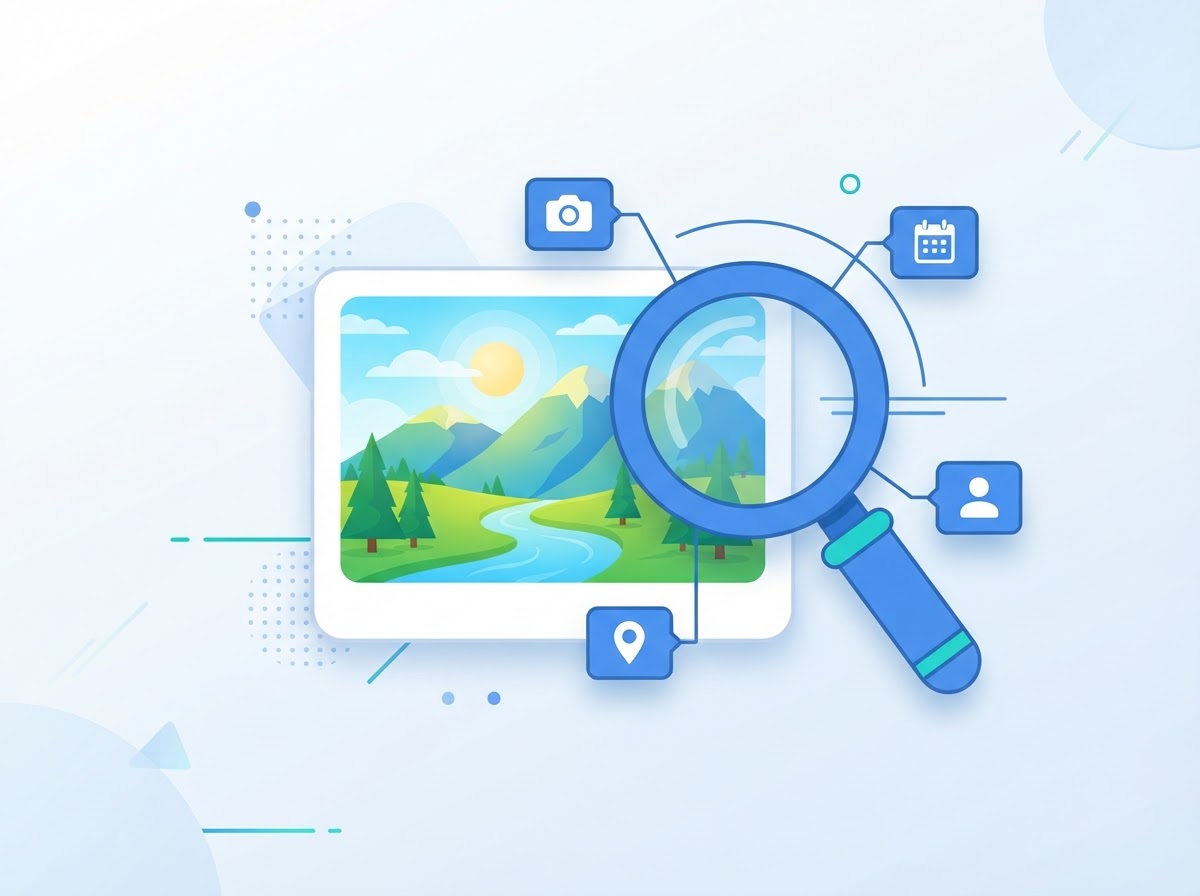
Metadata Report
- Camera:
- Canon EOS 80D
- Taken:
- 2024-06-14 09:32
- GPS:
- Found
- Author:
- Alex Morgan
Look first,
then decide
Drag & Drop a File to Check Its Metadata
— or —
· ·
This page only shows data and never edits your file. To clear it, use the Image Metadata Remover
Your Metadata Report
What Is a Metadata Viewer?
A reader, not a cleaner.
A metadata viewer is a tool that opens a file and lists the information stored inside it that you cannot see on screen. A photo can record the camera, the moment of capture and sometimes the place. A PDF or a Word document can record who wrote it, which program made it and when it was last saved.
The important word is viewer. This page reads the file and reports what it finds. It does not edit, clean or rewrite anything you choose, and it has no download button, because there is nothing to download. Removing data is a different job, done by the remover tools described further down.
What You Can See in the Metadata Report
Every field is sorted into a labelled group.
EXIF: camera, lens, exposure and date
EXIF is the largest group in most photos. Expect the camera make and model, lens details, exposure time, aperture, ISO, focal length, flash state and the date the picture was taken. Some files also carry a serial number, which ties a picture to one particular device, and an owner or artist name.
GPS: coordinates and altitude
When a geotag exists, the report lists it in its own group so it is hard to miss. You see the position in decimal form, plus altitude, the satellite time stamp and the map datum where they are stored. A link opens the point on an external maps site, so click it only if you are happy to pass the coordinates along.
XMP, IPTC and ICC blocks
These are containers that cameras and editing programs may add. The viewer decodes common XMP fields written in plain text, such as the creator tool, dates, title and description. IPTC and ICC blocks are flagged as present rather than unpacked.
PNG text chunks
A PNG can hold free-text entries, such as a software name, a comment or a description. They appear under their own keyword, together with a last-modified stamp when the file has one. Long entries are shortened, and compressed chunks may show up only as binary text.
PDF document info and XMP
For a PDF you get the version, page count, title, author, subject, keywords, creator application, producer, and the creation and modification dates, plus any plain-text XMP fields.
Office document properties
For DOCX, XLSX and PPTX files the report reads the core properties (title, author, last modified by, revision, created and modified times) and the application properties (program, company, manager, editing minutes), plus custom properties when the file has them.
Which File Types Can You Check?
What is supported, and where the limits are.
- JPG / JPEG. EXIF, GPS, XMP, IPTC and ICC data are all detected, and the common fields are decoded.
- PNG. Text chunks, an embedded EXIF chunk, the last-modified stamp and a colour-profile flag.
- WebP. The EXIF chunk is decoded, and XMP and colour-profile chunks are flagged.
- HEIC / HEIF. A best-effort scan looks for a plain EXIF block and decodes it. XMP, IPTC and colour data are not decoded, some files may show nothing, and the thumbnail appears only where your browser can decode HEIC.
- PDF. Document info fields and plain-text XMP. Encrypted PDFs may be only partly readable.
- DOCX, XLSX and PPTX. Core, application and custom properties.
Each file can be up to 20 MB, and one file is shown at a time. Older .doc, .xls and .ppt files, TIFF, GIF, raw camera files, audio and video are not supported. The reader decodes the tags that matter most for privacy, not every tag in the EXIF standard. An empty report means nothing readable was found, not that a file is guaranteed to be clean.
How to Check the Metadata in a Photo or File (3 Steps)
About a minute, start to finish.
- Select the file. Drag it onto the upload box at the top of the page or click Choose File. JPG, PNG, WebP, HEIC, PDF, DOCX, XLSX and PPTX files up to 20 MB are accepted, and nothing is uploaded.
- Read the grouped report. The report opens straight away with fields sorted into groups such as GPS, camera, dates, author and software, XMP, and document properties. A short summary above the table points out anything personal.
- Clean the file with a remover tool if you want to. The viewer never changes your file. If you want the data gone, open the matching tool linked under the report, such as the Image Metadata Remover for photos, and download a clean copy there.
Why Check Metadata Before You Share a File?
Because you cannot tell by looking.
Hidden fields never show in normal use, so the only reliable way to know is to look. Three everyday moments make the check worthwhile.
- Before publishing a CV. A résumé saved as a PDF or Word file can carry an author name that differs from the one on the page, or a former employer in the Company field.
- Before listing an item for sale. Photos taken at home may hold a GPS position, and some carry a device serial number. Seeing it first lets you decide.
- Before sending a document to a client. The revision number, editing time and “last modified by” name show how a draft was worked on, and by whom.
Most fields in a report are perfectly ordinary. The aim is simply to be informed, and to check the exact file you are about to send. For a wider explanation, read our guide to metadata privacy and how to protect yourself.
Viewer vs Remover: What’s the Difference?
One tells you what is there, the other takes it out.
A viewer answers “what does this file say about me?” A remover answers “how do I get a copy that says less?” They work best in that order.
When you are ready to clean a file, pick the tool that matches it: the Image Metadata Remover for JPG, PNG and WebP photos, the EXIF Data Remover for camera and lens tags, the GPS Location Remover for geotags, the PDF Metadata Remover for PDFs, the Document Metadata Remover for Office files, and the Batch Metadata Remover when you have several files at once.
Is It Private to Check Metadata Here?
Yes: the file stays with you.
Checking is done by JavaScript running in your own browser tab. The browser reads the file into memory on your device, the script works through it, and the report is drawn on the page. No copy goes to a server, and there is no account or email address involved.
What does load from the network is the page, its fonts and icons, and two open-source libraries (pdf-lib and JSZip) for PDFs and Office files. None of that involves your file. The only link that leaves the page is the GPS map link, if you click it. Closing the tab discards the report. For the full details, see our Privacy Policy, Terms of Use and Disclaimer.
Metadata Viewer FAQ
Quick answers about checking a file.
Drop the photo onto the upload box or choose it from your device. The page reads the file at once and opens a report with the fields sorted into groups: file details, GPS, camera and lens, exposure, dates, author and software, and embedded blocks. Scroll through the groups, or open the sample photo first to see what a full report looks like.
Yes, if the photo carries a geotag. The report lists a GPS group with the coordinates in decimal form, plus altitude, time and map datum when they are stored, and a link that opens the spot in a map. If the group is missing, the file holds no readable GPS fields, which is common for screenshots and edited copies.
No. The viewer only reads the bytes of the file in memory and prints what it finds. It does not re-save, compress or rewrite anything, and it offers no download, so the original on your device stays exactly as it was. To actually change what a file contains, you need one of the remover tools, which is a separate step.
No. The page loads its code once, and after that your browser reads the file locally with JavaScript. It is not sent to our servers, and there is no account to create. Loading the page does fetch scripts, libraries and fonts, but checking a file adds no upload. You can confirm that in your browser's network panel.
Yes. For a PDF the report shows the document info fields (title, author, subject, keywords, creator, producer, dates) and any plain-text XMP packet. For DOCX, XLSX and PPTX files it shows the core and application properties, such as author, last modified by, company, revision and times. Older .doc, .xls and .ppt files are not supported.
It includes one, but it covers more. EXIF is the camera data inside photos, and this viewer lists it. It also reports GPS, flags IPTC and ICC blocks, decodes common XMP fields, and reads PNG text chunks, PDF document info and Office properties in a single report. A tool that only reads EXIF would show nothing useful for a PDF or a Word file.
See It Before You Send It
A one-minute check, then your call.
Hidden fields cause trouble once a file lands with the wrong person. Scroll back to the top, choose a file or try a sample, and this metadata viewer will show you what it carries, without altering it or sending it anywhere.
Want to remove this data? Use our Image Metadata Remover for photos, the PDF Metadata Remover for PDFs or the Document Metadata Remover for Office files, then check the clean copy here once more to confirm.